Overview
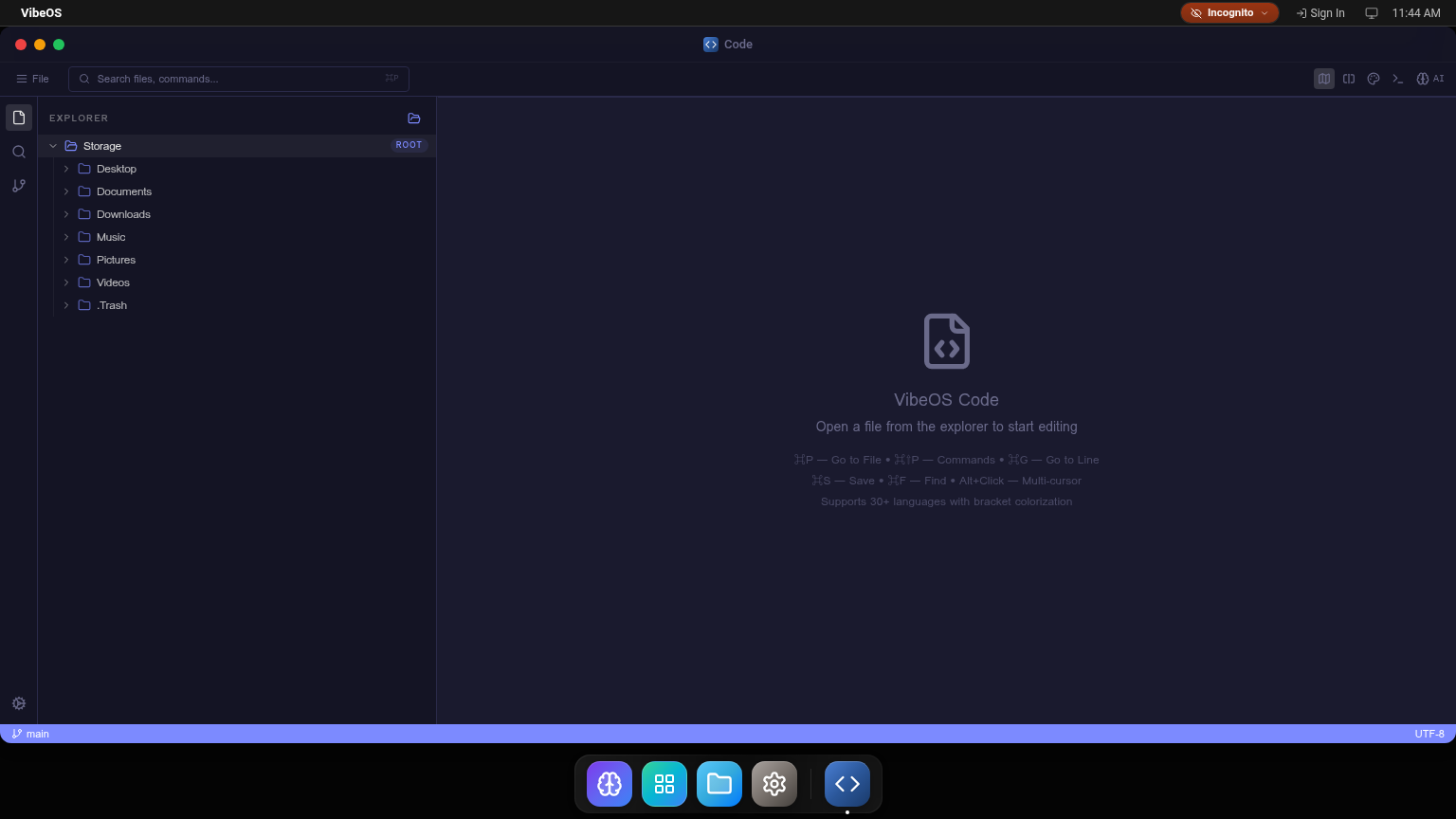
When Code opens, you see four main regions:
- Top toolbar — File menu, command center, layout / terminal / theme / AI toggles
- Activity bar (far left) — Explorer, Search, Source Control
- File Explorer — your VibeOS filesystem rooted at
Storage(Desktop, Documents, Downloads, Music, Pictures, Videos, .Trash, plus any mounted Volumes) - Editor area — empty state with keyboard shortcut hints until you open a file
- Status bar — current Git branch, modified indicator, language, encoding
Welcome-screen shortcuts:
Code supports 30+ languages with syntax highlighting and bracket colorization.
Command Center
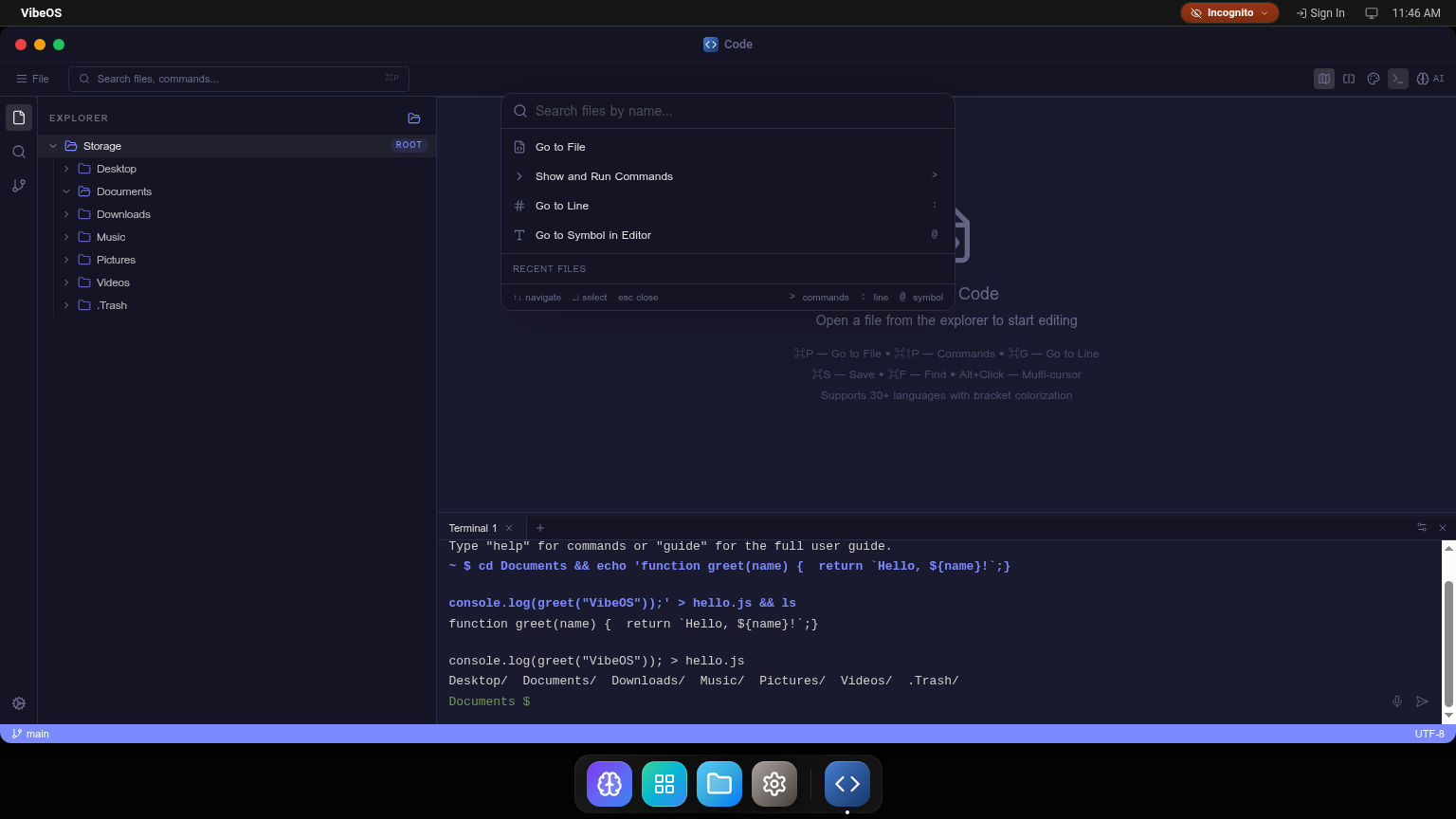
Press ⌘P (or click the search field at the top) to open the Command Center. From a single input you can:
- Go to File — fuzzy search any file in your filesystem
- Run Commands (
>prefix) — run editor commands - Go to Line (
:prefix) — jump to a line number - Go to Symbol (
@prefix) — jump to a function, class, or variable - See Recent Files for quick re-opens
Keyboard hints at the bottom: ↑↓ navigate · ↵ select · esc close.
File Explorer
The Explorer (first icon in the activity bar) shows your filesystem as a tree.
- Expand / collapse folders with the chevron
- Click a file to open it in a new editor tab
- Right-click for context actions: New File, New Folder, Rename, Delete, Move (uses the Folder Tree Picker), Reveal in Files
- Drag and drop is supported for moving files between folders
- A
+icon at the top of the panel creates a new file at the root
The Explorer is always in sync with the rest of VibeOS — files you create here appear in Files and any mounted Volumes.
Editor & Multi-Tab Editing
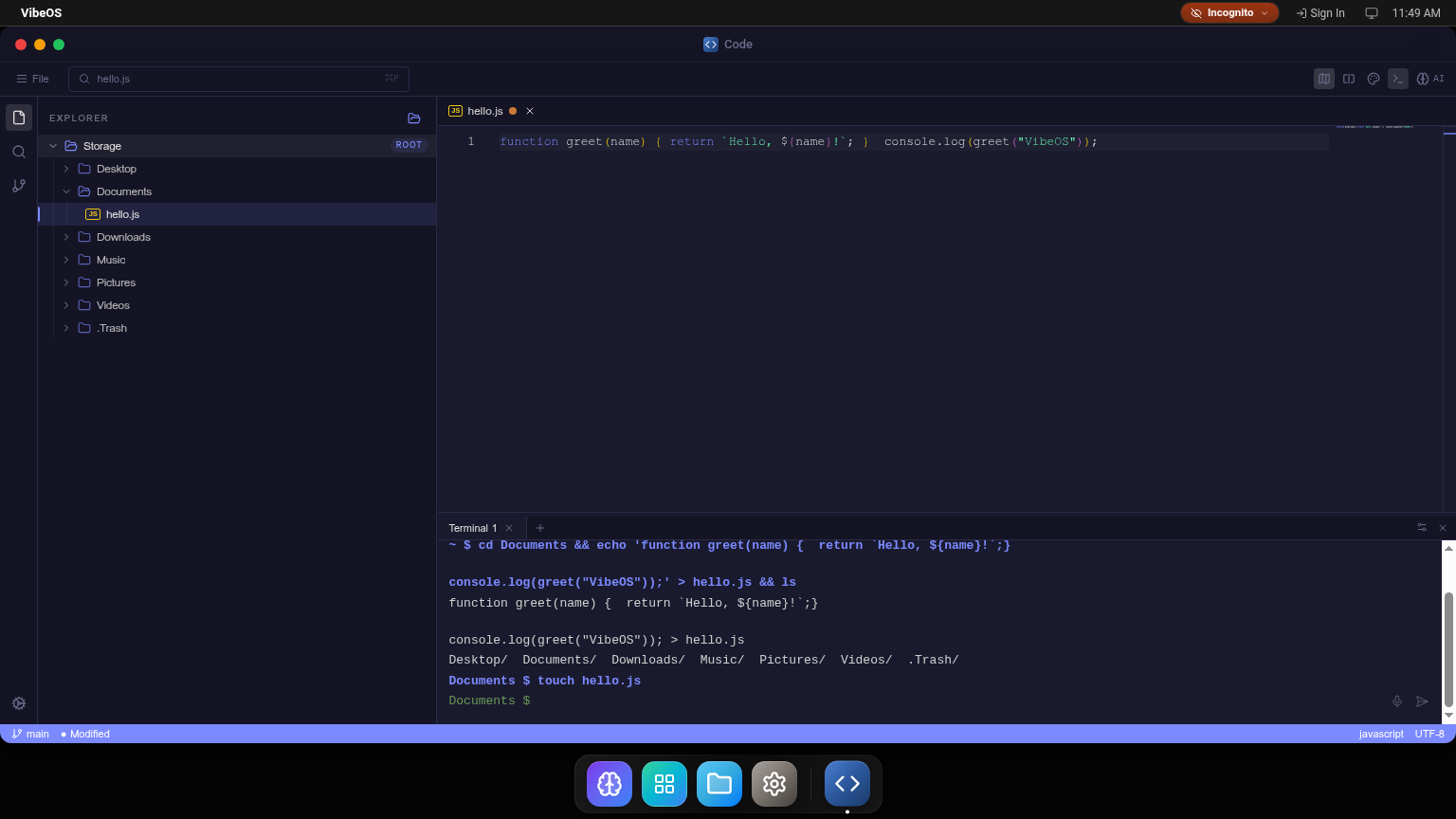
Click any file in the Explorer to open it. Code uses Monaco under the hood, giving you:
- Syntax highlighting for 30+ languages (auto-detected — JS, TS, Python, HTML, CSS, JSON, Markdown, etc.)
- Bracket colorization and bracket-pair guides
- Multi-cursor editing — Alt+Click to add cursors, or ⌘D to select next occurrence
- Find & Replace — ⌘F to find, ⌘⌥F to replace
- Multi-tab editing — open as many files as you want; the modified dot (●) on a tab indicates unsaved changes
- Auto-save on focus loss in addition to ⌘S
- Status bar shows the active branch (
main),● Modifiedindicator, detected language, and encoding (UTF-8)
The tab strip supports reordering and the × to close.
Integrated Terminal
The terminal panel (toggle from the toolbar) gives you a full vsh shell scoped to your current project directory.
What you can do in the terminal:
- File operations —
ls,cat,touch,mkdir,mv,cp,rm,echo > file - Navigation —
cd,pwd - Run Python with built-in Pyodide
- Run Git commands —
git init,git status,git add,git commit,git log,git push - Ask the AI directly from the shell
- Multiple terminal tabs — click
+next toTerminal 1to open more - Voice input via the microphone icon (Web Speech API)
The terminal shares the same theme system as the standalone Terminal app, so any theme you pick (Code Studio, Solarized, etc.) carries over.
Source Control (Git)
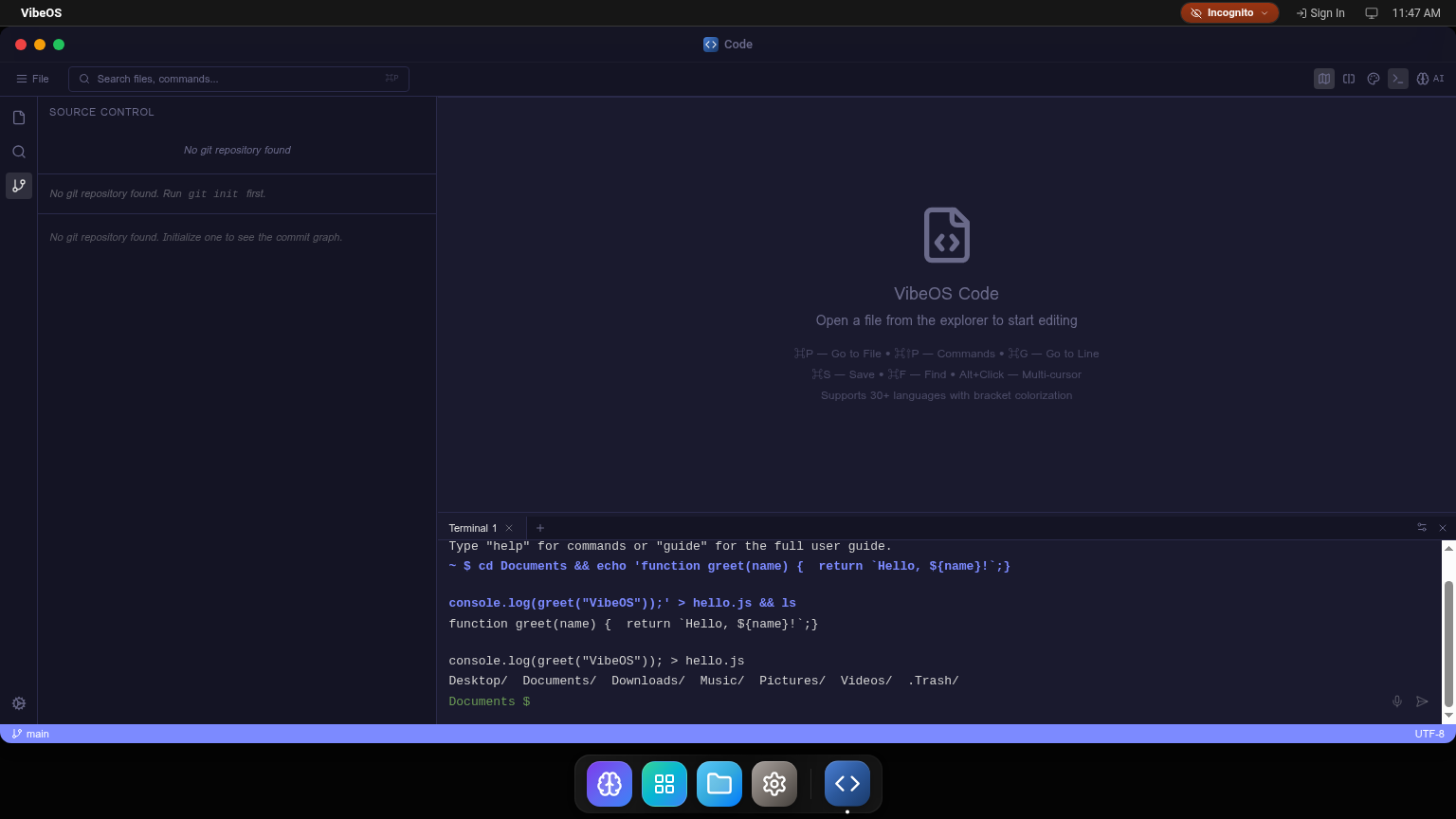
Click the git branch icon in the activity bar to open Source Control. The panel has three sections:
- Source Control — list of changed files with stage / unstage / commit actions
- Branch Panel — create, switch, delete, and merge branches
- Git Graph Panel — visual commit history
When no repository exists in the current folder, the panel prompts you to run git init first. All Git operations are powered by isomorphic-git and run entirely in your browser — no server required. You can clone remote repositories via the terminal (git clone <url>), and pushes go directly to GitHub via the REST API.
The status bar shows the current branch at the bottom-left.
AI Code Assistant
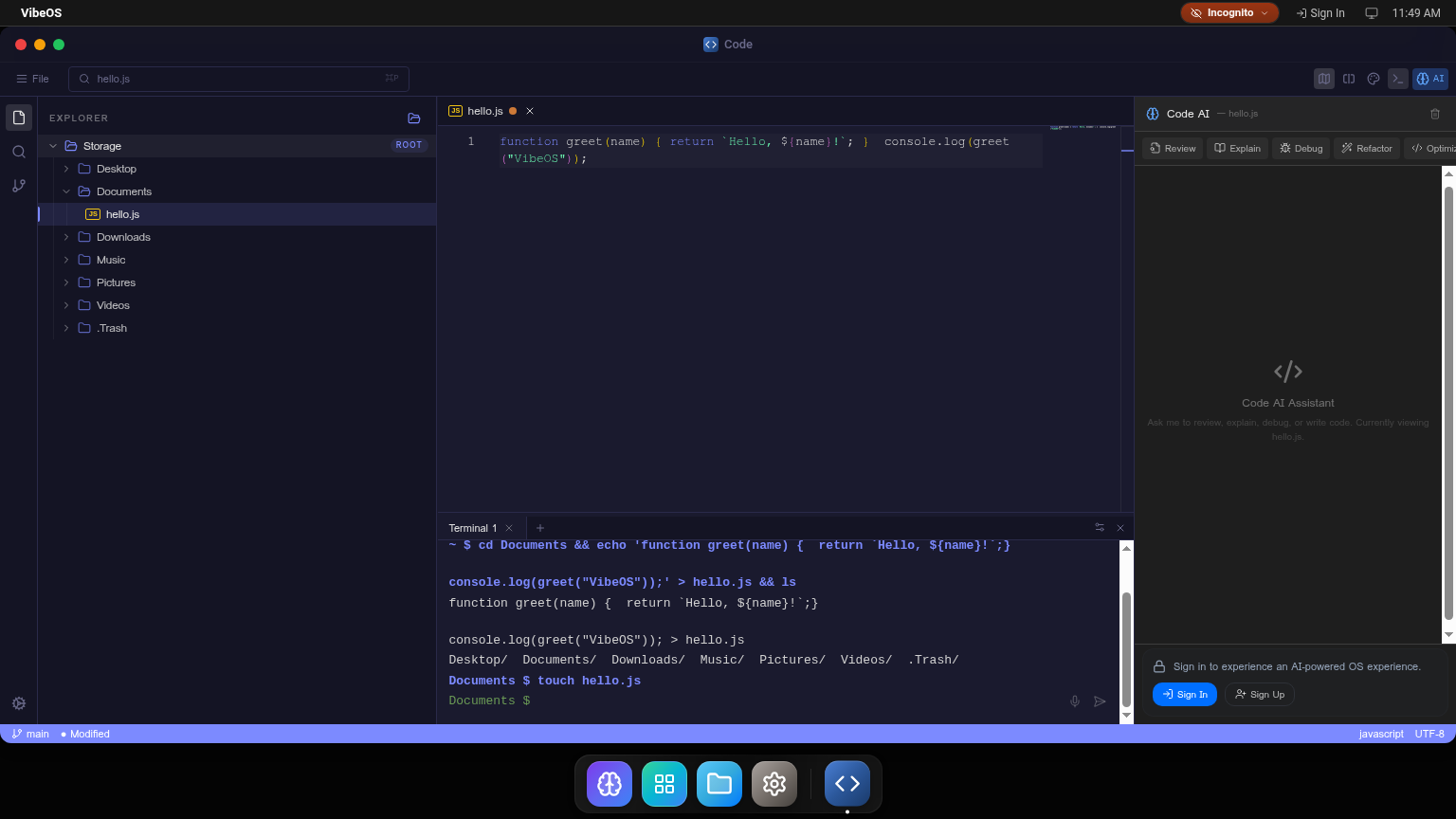
Toggle the Code AI panel from the top-right (AI button). The assistant is project-aware— it can read and write files in your project and understands the file currently open in the editor (shown in the panel header, e.g. Code AI — hello.js).
Built-in quick actions across the top:
Review
Code review of the open file
Explain
Natural-language explanation
Debug
Find and explain bugs
Refactor
Cleaner, idiomatic code
Optimize
Performance suggestions
Below those buttons you can chat freely. The AI can:
- Generate new files
- Edit existing files (with diffs)
- Run terminal commands on your behalf
- Explain errors and suggest fixes
Code AI delegates from the main VibeOS VibeAI — you can also hand a task off from the desktop assistant and it will route here automatically.
Settings & Themes
The gear icon at the bottom-left of the activity bar opens Code Settings:
Settings persist per-instance in localStorage.
Keyboard Shortcuts
The keys that pay rent. Most editing shortcuts mirror VS Code.
Navigation
Quick open file
Navigation
Command palette
Navigation
Go to line
Editing
Save file
Editing
Find
Editing
Find & replace
Editing
Select next occurrence
Editing
Add cursor
Layout
Split editor
Layout
Toggle terminal
Tips
Open via file association
Double-click any code file from Files (.js, .ts, .py, .md, …) to open it in Code.
Set the project root
Drag a folder onto the window to make it the current project root.
Terminal + AI together
Let the AI suggest a command, then run it in the integrated terminal — no context switch.
Source control works offline
Commits live in your VibeOS filesystem until you push to GitHub.